---
description: Buy your first $FINA token from Shade protocol, a decentralized exchange
---
# How to Buy
1. [**Set Up a Wallet or Import your wallet**](https://docs.fina.cash/fina-wallet/features/create-import-wallet)
If you don't have one already, install a cryptocurrency wallet like [Fina Mobile Wallet](https://fina.cash/) or Keplr and create an account. Make sure to secure your private keys and back up your wallet.
2. **Access Shade Protocol on PC or Fina Mobile Wallet dApp browser**
Visit the Shade Protocol website at[ ](https://app.shadeprotocol.io/swap/pools)[https://app.shadeprotocol.io/swap?input=SCRT\&output=FINA](https://app.shadeprotocol.io/swap?input=SCRT\&output=FINA)
You can also access Shade Protocol via Fina mobile wallet's **dApps list**
3. **Connect Your Wallet**
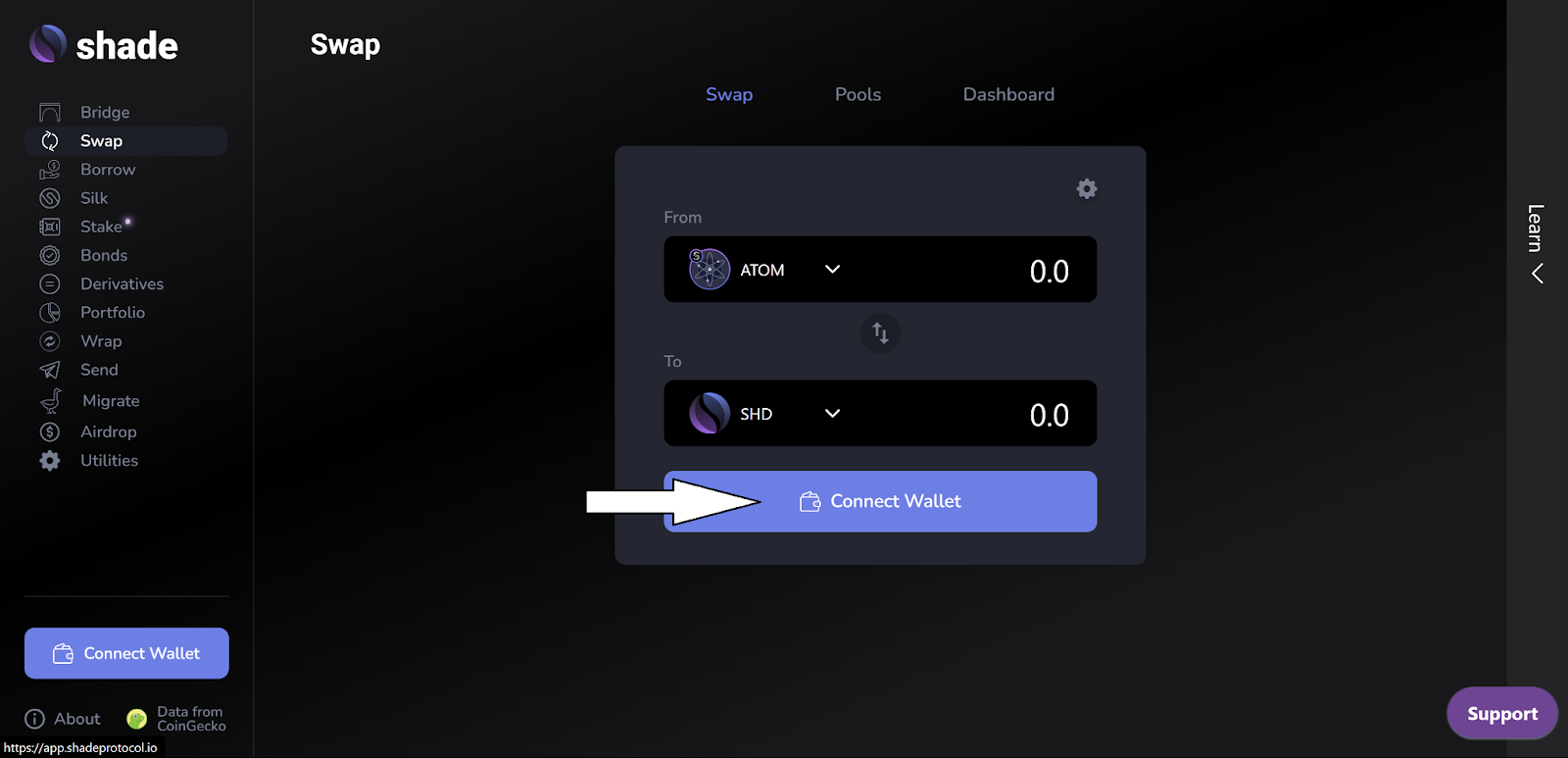
Click on the "Connect Wallet" button on the Shadeswap page
A Keplr / Fina pop-up will appear, requesting permission to connect your wallet. Confirm the connection.
4. **Select a Swap**
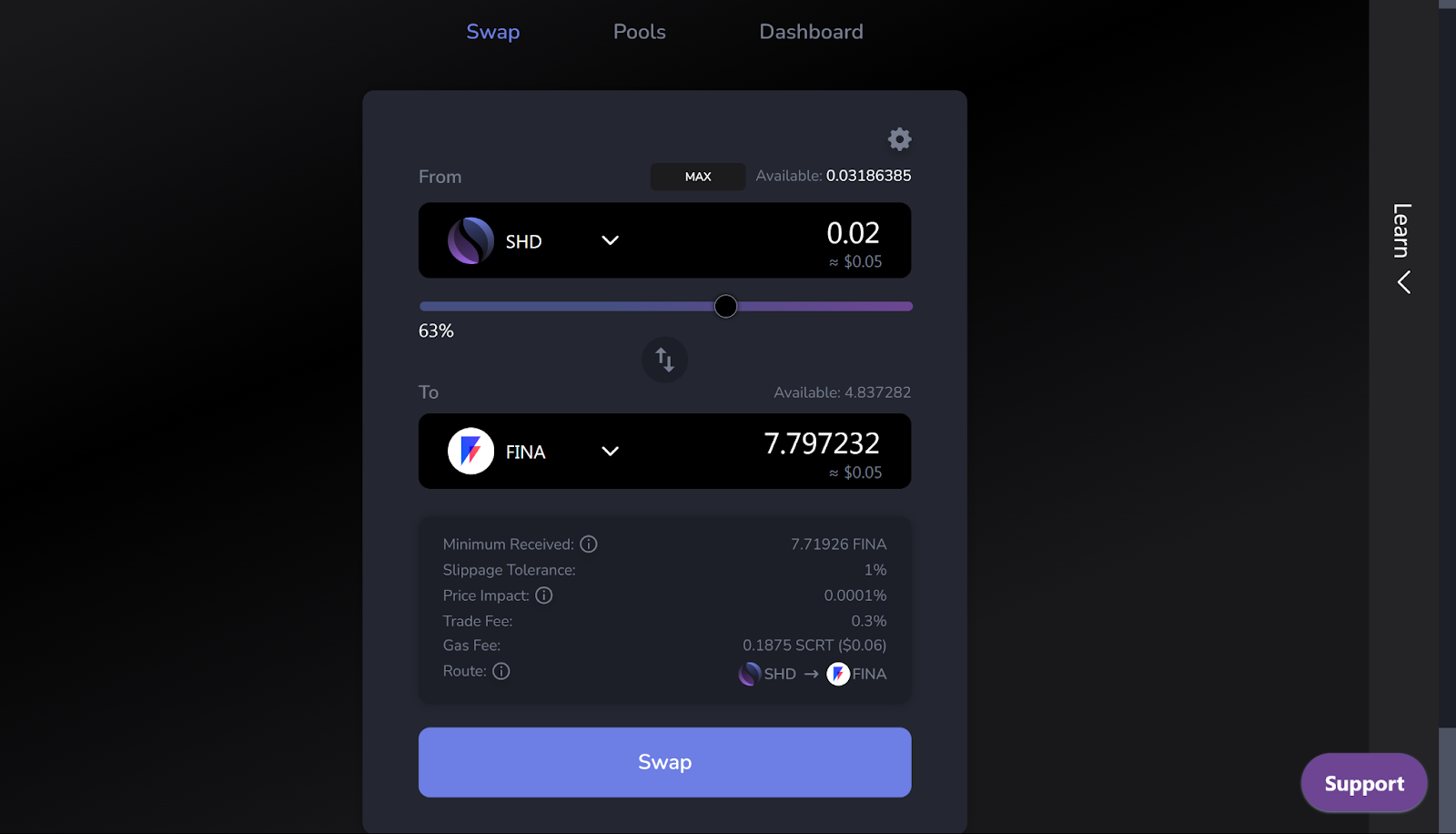
On the Shadeswap page, you'll see a list of available tokens for swap. Select the pair of your choice, the `From` currency is the token you are going to pay, and `To` currency is the token you are going to receive.
5. **Enter the Amount**
Specify the amount of $SHD you want to swap for FINA tokens. You can choose to swap $SCRT or another supported token for $FINA.
Shade Protocol will display the exchange rate, estimated slippage, and fees. Review this information to ensure it's acceptable to you.
Click the "Swap" button to confirm the transaction.
6. **Confirm in Keplr or Fina**
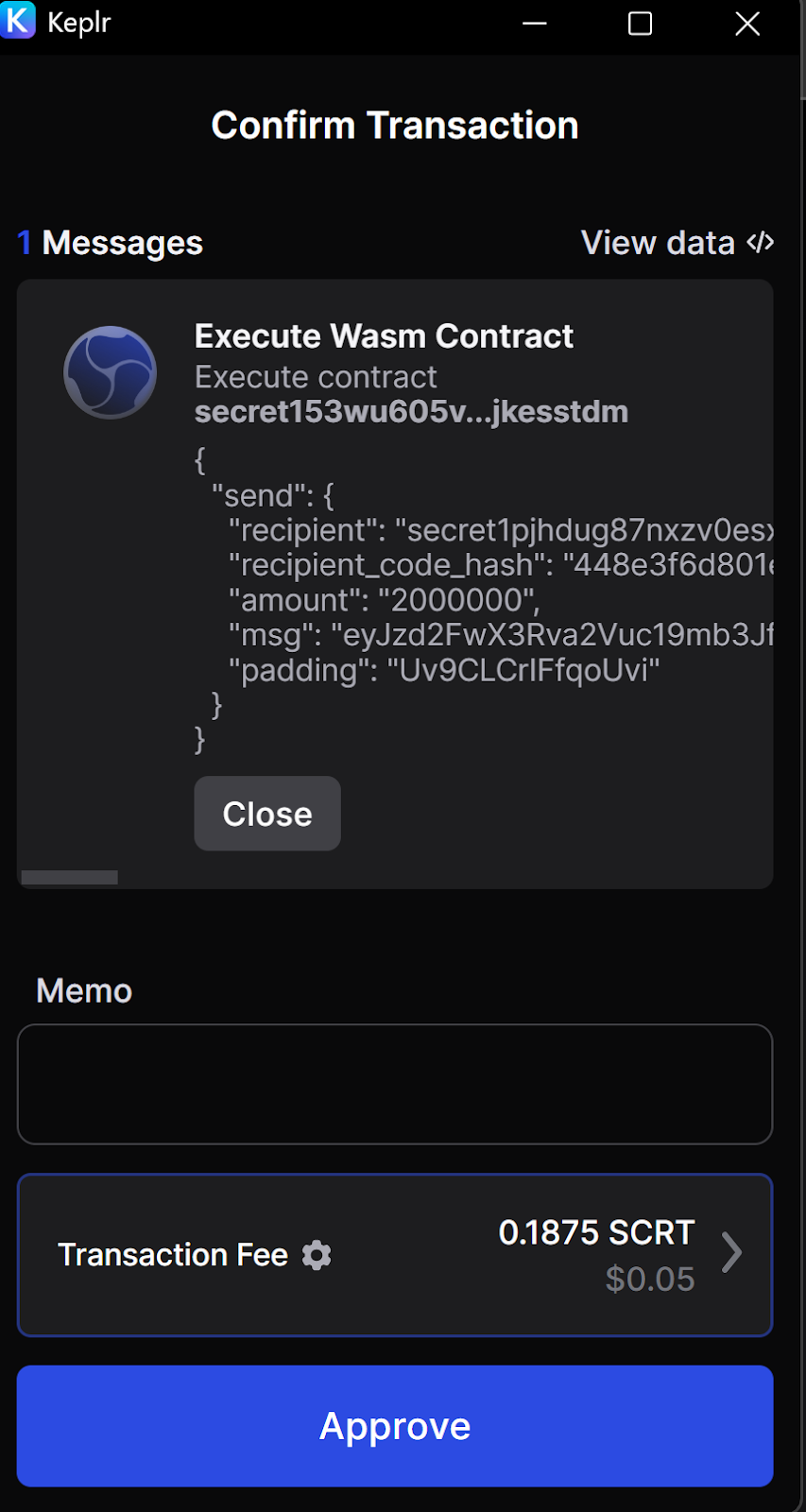
A pop-up will appear, showing the transaction details and fees.
Review them and confirm the transaction.
7. **Wait for Confirmation**
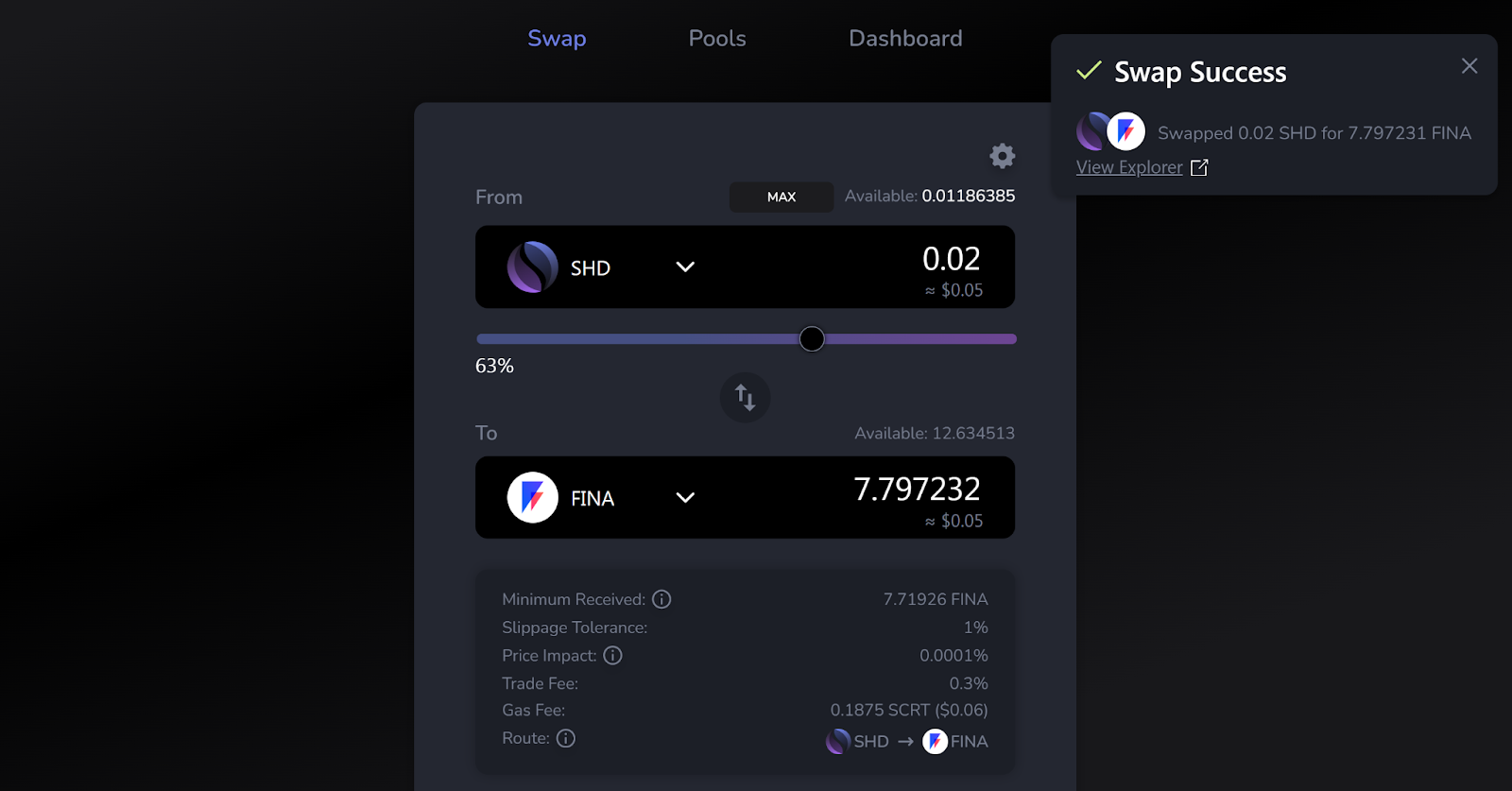
The transaction will be broadcasted to the Secret Network. You'll need to wait for the transaction to be confirmed. This may take a few minutes, and you can track the progress in your wallet.
Once the transaction is confirmed, the FINA tokens will appear in your wallet.